First launch & onboarding
When you open the app for the first time, things go in this order. There are essentially 4 steps — welcome screen → sign up / sign in → quick survey → trial offer — and right after that, you jump straight into your first video.
1. Welcome screen
Section titled “1. Welcome screen”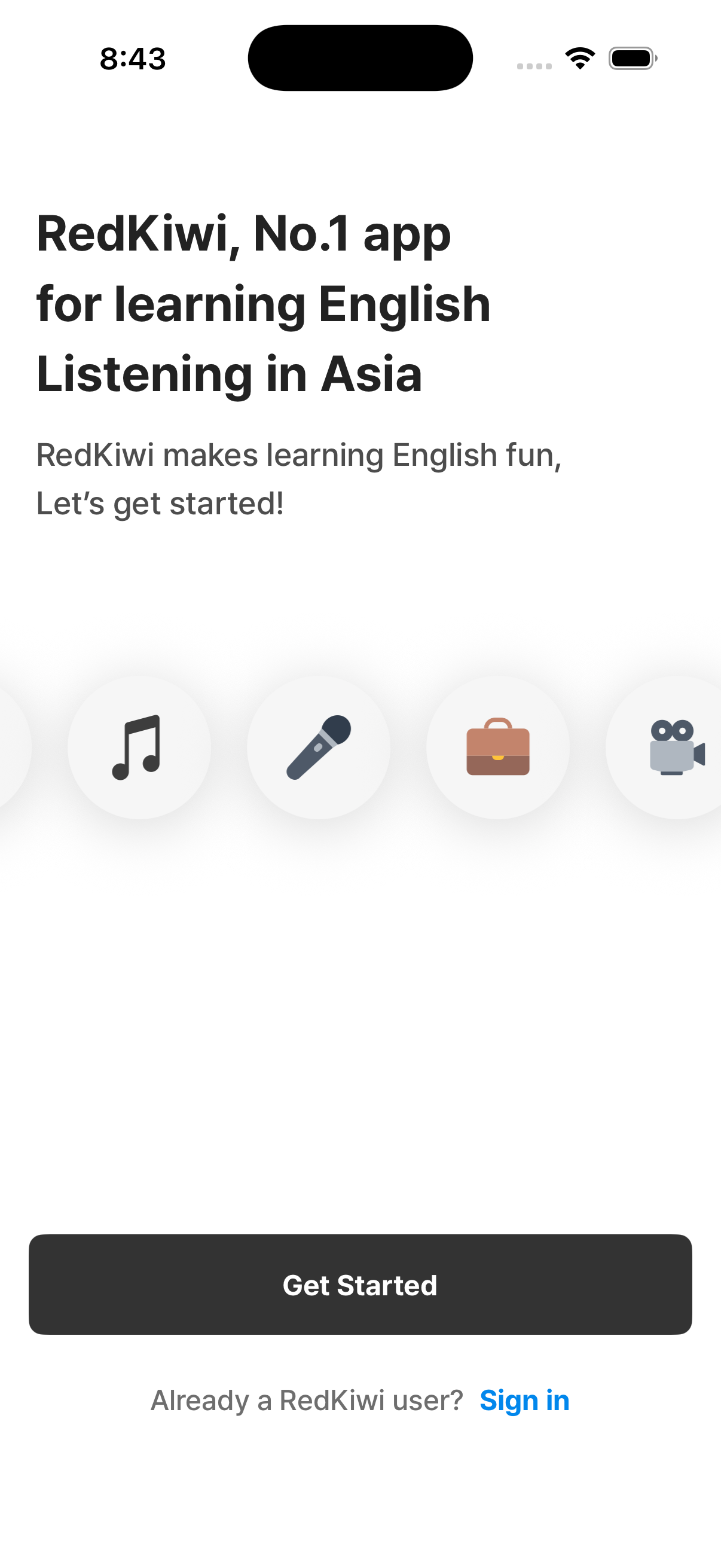
Tap “Get started” to begin the sign-up flow, or tap “Already have an account?” (or “Sign in”) if you’ve used RedKiwi before. Existing users go straight to the home screen after signing in.
2. Sign up / sign in methods
Section titled “2. Sign up / sign in methods”RedKiwi supports several sign-in methods. Which buttons you see depends on your device and language settings.
| Sign-in method | When it shows |
|---|---|
| 📧 Email + password | Everyone |
| Everyone | |
| ⚫ Apple | iOS devices only |
| Everyone | |
| 🟡 Kakao | When the app language is Korean |
| 💚 LINE | When the app language is Japanese |
You can add more sign-in methods later from settings via SNS account linking. → SNS linking
3. Quick survey
Section titled “3. Quick survey”This is where the app gets to know you a little. In a chat-style flow, it asks:
- English level — Beginner / Intermediate / Advanced
- Favorite content — pick one of Tangled, Friends, Harry Potter, TED, BBC News, Pop Music, Big Hero 6, or Nothing Specific
- Daily study goal — this becomes the starting value for your Daily goal
The English level is used in the Challenges tab to recommend challenges that match your level. Don’t overthink it — pick whichever feels right. Content recommendations adjust later based on what you actually study (and what you hide).
4. Subscription / trial offer
Section titled “4. Subscription / trial offer”The 3-day free trial or paid subscription is offered here.
- The trial can be claimed only once
- You can cancel any time during the trial
- Cancel at least 24 hours before the trial ends to avoid being auto-charged
If you skip or close this screen, you can still use the app normally. Full details → Free trial
5. Into the main app — your first lesson
Section titled “5. Into the main app — your first lesson”Once you close the subscription screen or finish a purchase, you land on the home screen. From there you can tap a recommended video and start studying right away.
Curious how the learning flow works? 👉 Learning flow
⚠️ Where do I set notification permissions / times?
Section titled “⚠️ Where do I set notification permissions / times?”The onboarding flow doesn’t ask for a specific notification time or push permission. Instead, iOS/Android will show a system permission prompt at the moment it’s actually needed, and you can change everything from settings.